Uploading Floorplans
Supported Floorplan Formats
Plotstuff supports three types of floorplan uploads, each designed for different source materials and coordinate systems:
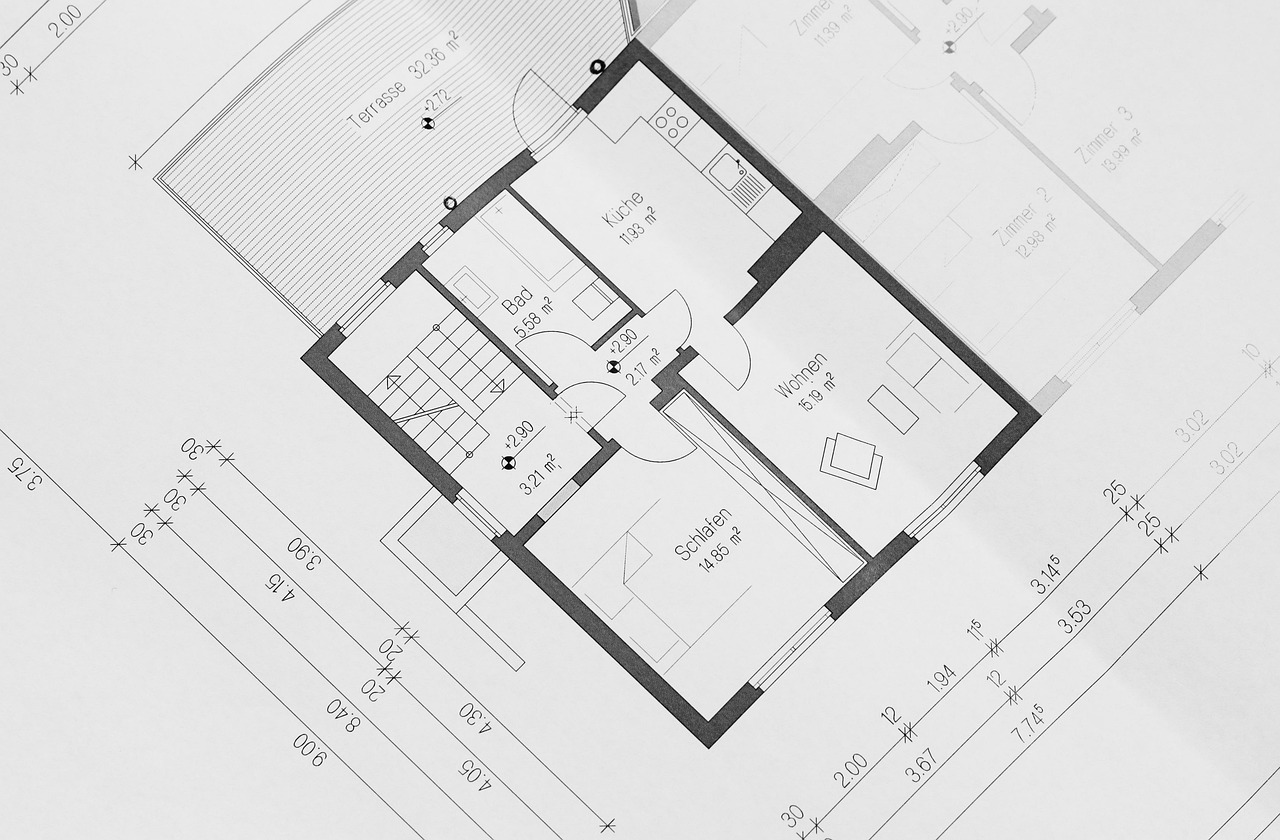
PDF Documents — The most common format. Architectural drawings exported from CAD software, scanned plans, or any PDF with a visual representation of a floor layout. Plotstuff uses point-based coordinates to place assets on PDF floorplans.
DXF/CAD Files — Industry-standard CAD exchange format. DXF files preserve the original world-coordinate system from your CAD software, using millimetre-based coordinates. This is ideal when you need precise, real-world positioning of assets.
Satellite / Map Imagery — For outdoor sites, campuses, or large-scale planning. Plotstuff uses latitude and longitude coordinates, allowing you to place assets on aerial views of your site.
How to Upload a Floorplan
- 1
Open your project and navigate to the Floorplans tab.
- 2
Click the + Upload Floorplan button.
- 3
Select your file type — PDF, DXF, or Satellite/Map.
- 4
Drag and drop your file into the upload area, or click to browse your computer.
- 5
Give the floorplan a name (e.g. "Ground Floor", "Level 3 — East Wing").
- 6
Click Upload and wait for processing to complete. Large files may take a few moments.
For PDF floorplans, use vector PDFs exported directly from your CAD software rather than scanned images. Vector PDFs render more crisply at all zoom levels and result in smaller file sizes.
Multi-Page PDFs
When you upload a multi-page PDF, Plotstuff automatically detects each page and creates a separate floorplan for each one. This is especially useful when your architect provides a single PDF containing all floor levels. Each page becomes its own floorplan that you can name individually.
After upload, review each floorplan to ensure the correct page was assigned to the correct floor name. You can rename floorplans at any time from the Floorplans tab.
DXF files must be saved in a compatible version (AutoCAD 2018 or earlier recommended). Some proprietary CAD features may not render correctly. If your DXF does not display as expected, try re-exporting it from your CAD application with simplified layers.
Related Articles
Getting Started
Creating Your First Project
Learn how to create a new project in Plotstuff, give it a name and description, and prepare it for floorplan uploads and asset placement.
Getting Started
Understanding the Workspace
Get to know the Plotstuff workspace layout including the sidebar, floorplan viewer, asset panel, and toolbar controls.
Asset Management
Placing Assets on Floorplans
Learn how to place, position, and manage asset markers on your floorplans using click-to-place, drag positioning, and precise coordinates.