Creating Your First Project
What is a Project?
A project in Plotstuff represents a single building, site, or campus that you want to manage assets for. Each project acts as a container for your floorplans, asset types, placed assets, approval workflows, and exported reports.
Whether you are planning wayfinding signage for a hospital, managing fire safety assets across an office building, or coordinating an installation across multiple floors, everything lives inside a single project. You can create as many projects as your subscription allows, and each one is completely independent.
How to Create a Project
- 1
Sign in to your Plotstuff account and navigate to the Dashboard.
- 2
Click the + New Property button in the top-right corner of the dashboard.
- 3
Enter a Project Name — use something descriptive like the building name or site address (e.g. "St James Hospital — Block A").
- 4
Optionally add a Description to give your team context about the project scope.
- 5
Click Create Project to finalise. Your new project card will appear on the dashboard immediately.
Use a clear naming convention across your projects. Including the building name and phase (e.g. "Riverside Campus — Phase 2") makes it easy to find projects later, especially when your team is managing multiple sites.
What Happens After Creation?
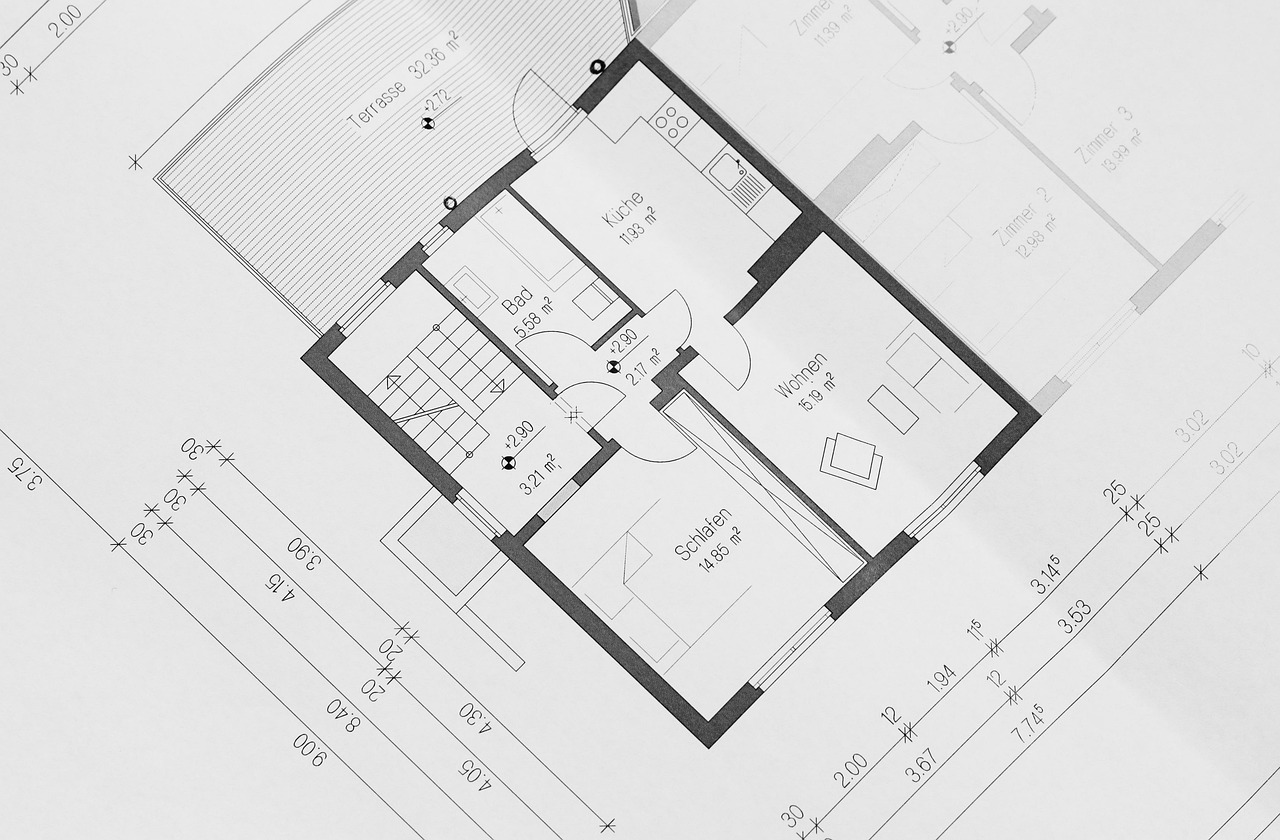
Once your project is created, you will land on the project detail page. From here you have three tabs to work with: Floorplans, Asset Types, and Settings. Your first step should be uploading at least one floorplan so you have a canvas to place assets on.
You can also invite team members, configure project settings, and start defining the asset types you will need. All of this can be done in any order — Plotstuff is flexible enough to let you set things up the way that works best for your workflow.
If you are evaluating Plotstuff and do not have an account yet, use the **Try It Now** button on the homepage. This loads a pre-configured demo project so you can explore the platform without signing up.
Related Articles
Getting Started
Uploading Floorplans
Upload PDF, DXF, or satellite floorplans to your project. Learn about supported formats, coordinate systems, and best practices.
Getting Started
Understanding the Workspace
Get to know the Plotstuff workspace layout including the sidebar, floorplan viewer, asset panel, and toolbar controls.
Getting Started
Inviting Team Members
Invite colleagues to your Plotstuff team, assign roles, and start collaborating on projects together in real time.