Placing Assets on Floorplans
Placing Your First Asset
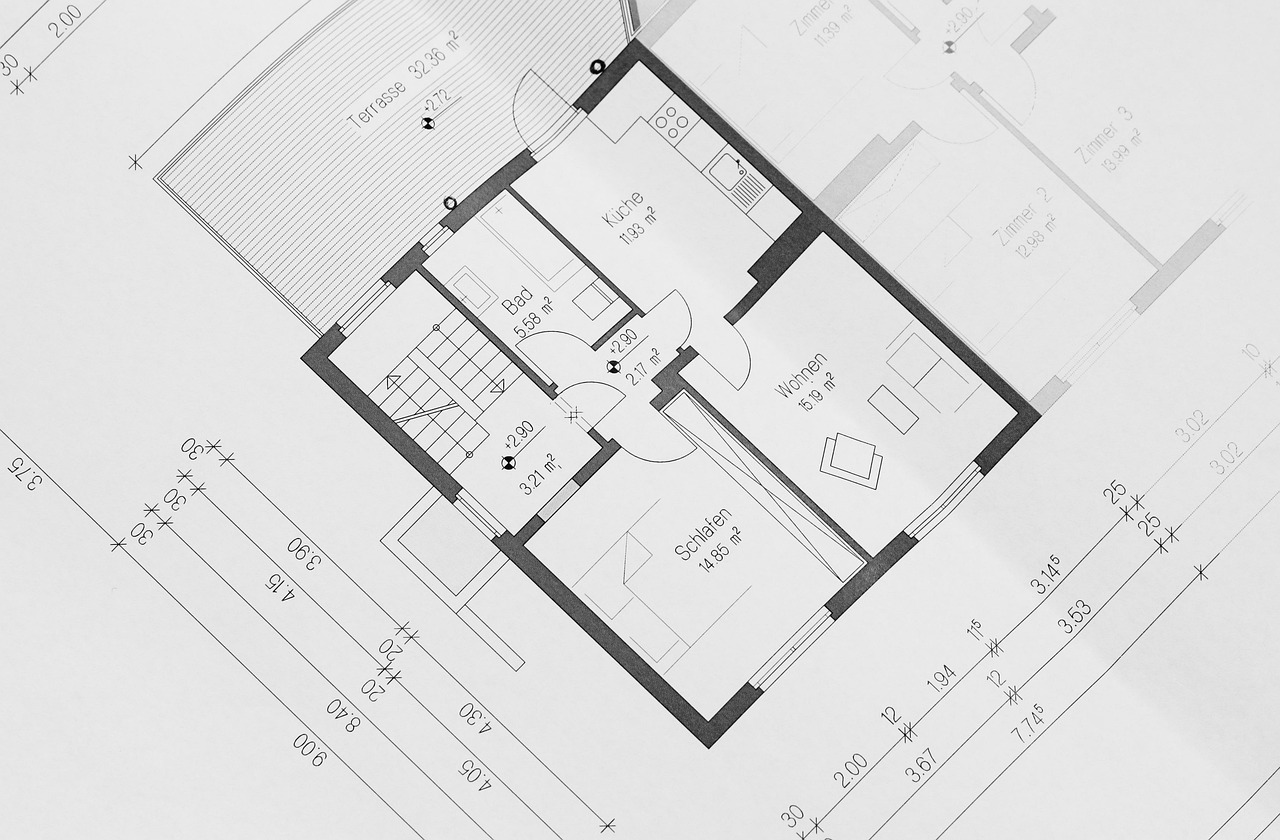
Placing assets on a floorplan is the core activity in Plotstuff. Each placed asset appears as a colour-coded marker on the floorplan, showing exactly where that item should be located in the physical building.
Before you can place assets, you need at least one asset type defined and one floorplan uploaded. If you have not done these steps yet, see the Creating Asset Types and Uploading Floorplans guides first.
How to Place an Asset
- 1
Open a floorplan from the Floorplans tab in your project.
- 2
Make sure the correct asset type is selected in the Types panel on the right.
- 3
Click the + button in the bottom-right placement toolbar to enter placement mode.
- 4
Click anywhere on the floorplan where you want the asset to be located.
- 5
A colour-coded marker appears at the clicked position. The asset is automatically assigned a reference code (e.g. ST1-G-1).
- 6
Repeat clicking to place additional assets of the same type. Click the + button again to exit placement mode.
Moving and Repositioning Assets
After placing an asset, you can reposition it at any time by clicking on its marker and dragging it to a new location. The marker snaps to your cursor, and releasing the mouse button sets its new position. The updated coordinates are saved automatically.
For precise positioning, you can also edit the exact coordinates in the asset detail panel. This is useful when you need assets aligned to specific architectural features or grid lines on the floorplan.
Zoom in before placing assets in tight areas. The placement accuracy matches your current zoom level, so zooming in gives you more precise control over marker positioning.
Reference Code System
Each placed asset receives an automatic reference code following the pattern [TypeCode]-[FloorCode]-[Number]. For example, the third room sign placed on the ground floor would be RS1-G-3. This system ensures every asset has a unique, human-readable identifier.
The floor code is derived from the floorplan name, and the number increments sequentially as you place more assets of the same type on the same floor. These reference codes are used throughout the platform — in reports, exports, approval flows, and production artwork.
You can place assets from different types on the same floorplan. Simply switch the selected type in the Types panel before entering placement mode to alternate between types.
Related Articles
Asset Management
Creating and Managing Asset Types
Define asset types with custom codes, colours, icons, and fields. Asset types determine how assets are categorised and displayed on floorplans.
Asset Management
Bulk Operations
Save time by selecting, editing, moving, and deleting multiple assets at once. Learn how to use bulk actions for efficient asset management.
Getting Started
Uploading Floorplans
Upload PDF, DXF, or satellite floorplans to your project. Learn about supported formats, coordinate systems, and best practices.