Phase-Based Filtering
What Are Phases?
Phases allow you to divide your project into logical stages or timelines. Large projects are rarely completed all at once — construction may proceed wing by wing, floor by floor, or in defined rollout stages. Phases let you tag each asset with the stage it belongs to, so you can filter your view to show only what is relevant right now.
For example, a hospital signage project might have "Phase 1 — Emergency Department", "Phase 2 — Outpatient Clinics", and "Phase 3 — Administration". Each phase can be viewed independently or together.
Setting Up Phases
- 1
Open your project and go to the Settings tab.
- 2
Navigate to the Phases section.
- 3
Click Add Phase and enter a name for your first phase.
- 4
Repeat to add all the phases your project requires.
- 5
Assign assets to phases when placing them or by editing existing assets.
Filtering by Phase
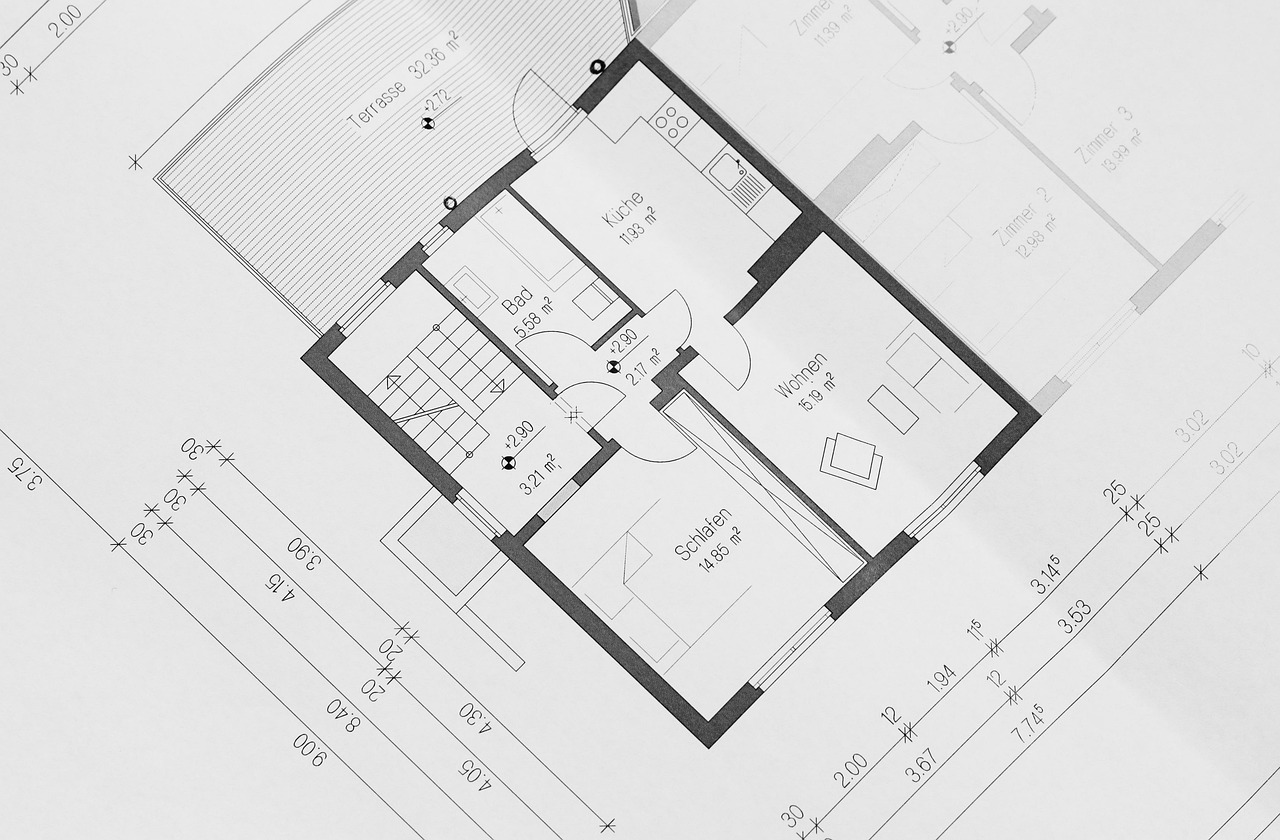
Once phases are set up and assets are assigned, you can use the phase filter in the workspace toolbar to toggle which phases are visible on the floorplan. This is incredibly useful during design reviews, client presentations, and installation planning.
When a phase filter is active, only assets belonging to that phase are shown on the floorplan. All other markers are hidden, giving you a clean view of just the work relevant to that stage. Reports and exports also respect the active phase filter, so you can generate phase-specific schedules and bills of quantities.
Use phase filtering during client meetings to present the project one stage at a time. This prevents information overload and lets stakeholders focus on what is being delivered in each phase.
An asset can only belong to one phase at a time. If an asset needs to move between phases (e.g. due to schedule changes), you can reassign it individually or use bulk operations to move multiple assets at once.
Related Articles
Asset Management
Bulk Operations
Save time by selecting, editing, moving, and deleting multiple assets at once. Learn how to use bulk actions for efficient asset management.
Asset Management
Placing Assets on Floorplans
Learn how to place, position, and manage asset markers on your floorplans using click-to-place, drag positioning, and precise coordinates.
Exports & Reports
Exporting PDF Reports
Generate professional PDF reports of your floorplans with asset markers, schedules, and bills of quantities in multiple paper sizes.