Exporting PDF Reports
PDF Export Options
Plotstuff can generate high-quality PDF reports that combine your floorplan drawings with asset marker overlays, reference labels, and supporting schedules. These reports are designed for printing, site use, and client presentations.
You can export floorplan PDFs in three standard paper sizes: A1 for full architectural prints, A3 for standard office printing, and A4 for compact reference copies. Each size includes the same content — the floorplan drawing with all visible asset markers and their reference codes.
How to Export a PDF
- 1
Open the floorplan you want to export.
- 2
Apply any phase filters or type visibility settings — the export will match your current view.
- 3
Click the Download Options button in the top toolbar.
- 4
Under Floorplan Downloads, select your preferred size: A1, A3, or A4.
- 5
The PDF is generated and automatically downloaded to your computer.
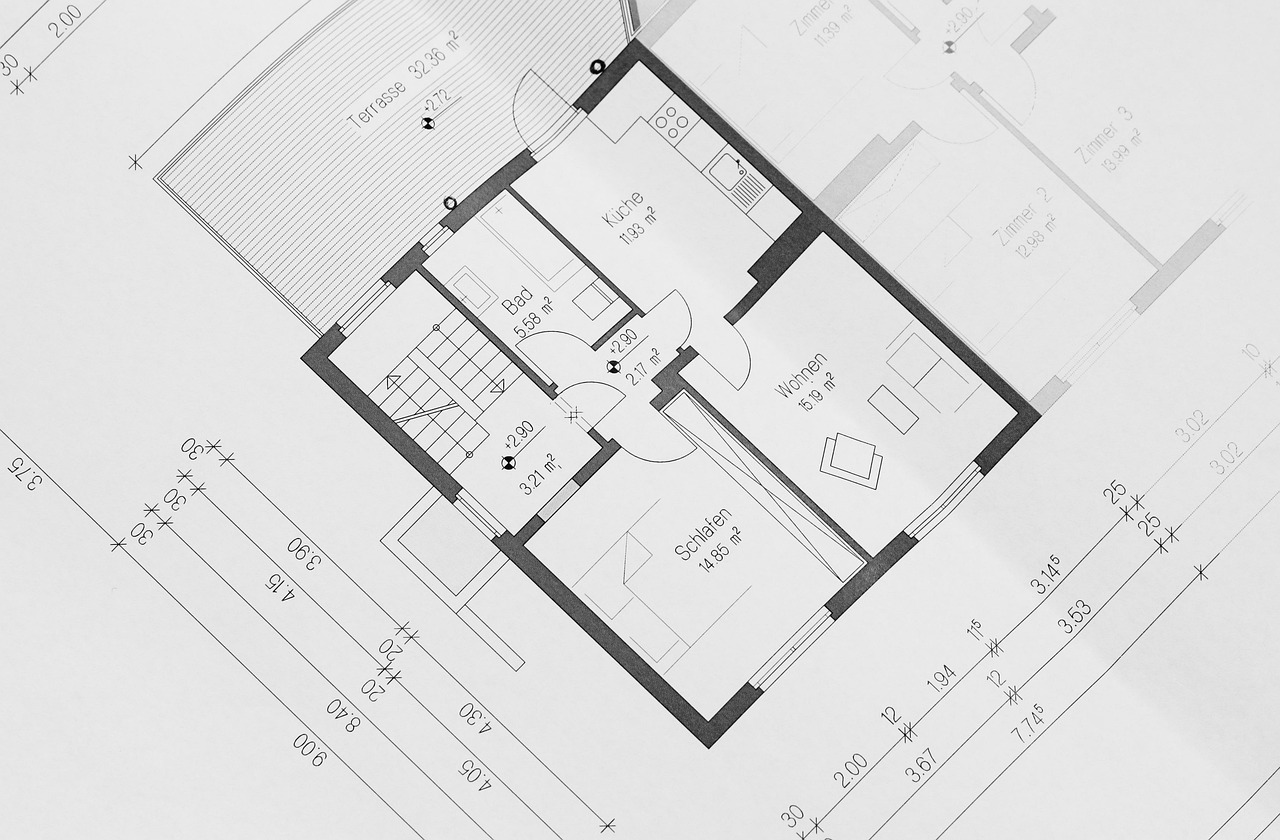
Use A1 format for on-site installation prints. These large-format PDFs can be posted on each floor during construction so installers can see exactly where every asset belongs.
Additional Report Types
Beyond floorplan PDFs, Plotstuff offers two additional report formats:
Bill of Quantities — A summary count of all assets grouped by type. This is invaluable for procurement, budgeting, and quantity surveying. It shows how many of each asset type are needed across the entire project.
Asset Report — A comprehensive schedule listing every individual asset with its reference code, type, location (floorplan), and any associated data fields. This report can be used as the master asset register for the project.
PDF exports respect the currently active filters. If you have a phase filter enabled, only assets in that phase will appear in the export. Remove all filters to get a complete export of every asset.
Related Articles
Exports & Reports
Production Artwork
Generate print-ready SVG and PDF artwork for every asset in your project. Batch export production files ready for fabrication.
Exports & Reports
Downloading Project Data
Export your project data as CSV files for use in spreadsheets, databases, or other tools. Learn what data is available and how to use it.
Asset Management
Phase-Based Filtering
Use phases to organise project timelines and filter your floorplan views. Show only the assets relevant to a specific project phase.