Importing SVG Artwork Files
Upload SVG artwork files to associate visual designs with your assets. Learn the naming conventions that automatically match files to specific assets or asset types.
Before you start
- ✓A project with defined asset types
- ✓SVG artwork files ready to upload
Step 1 of 4
Open the Upload dialog
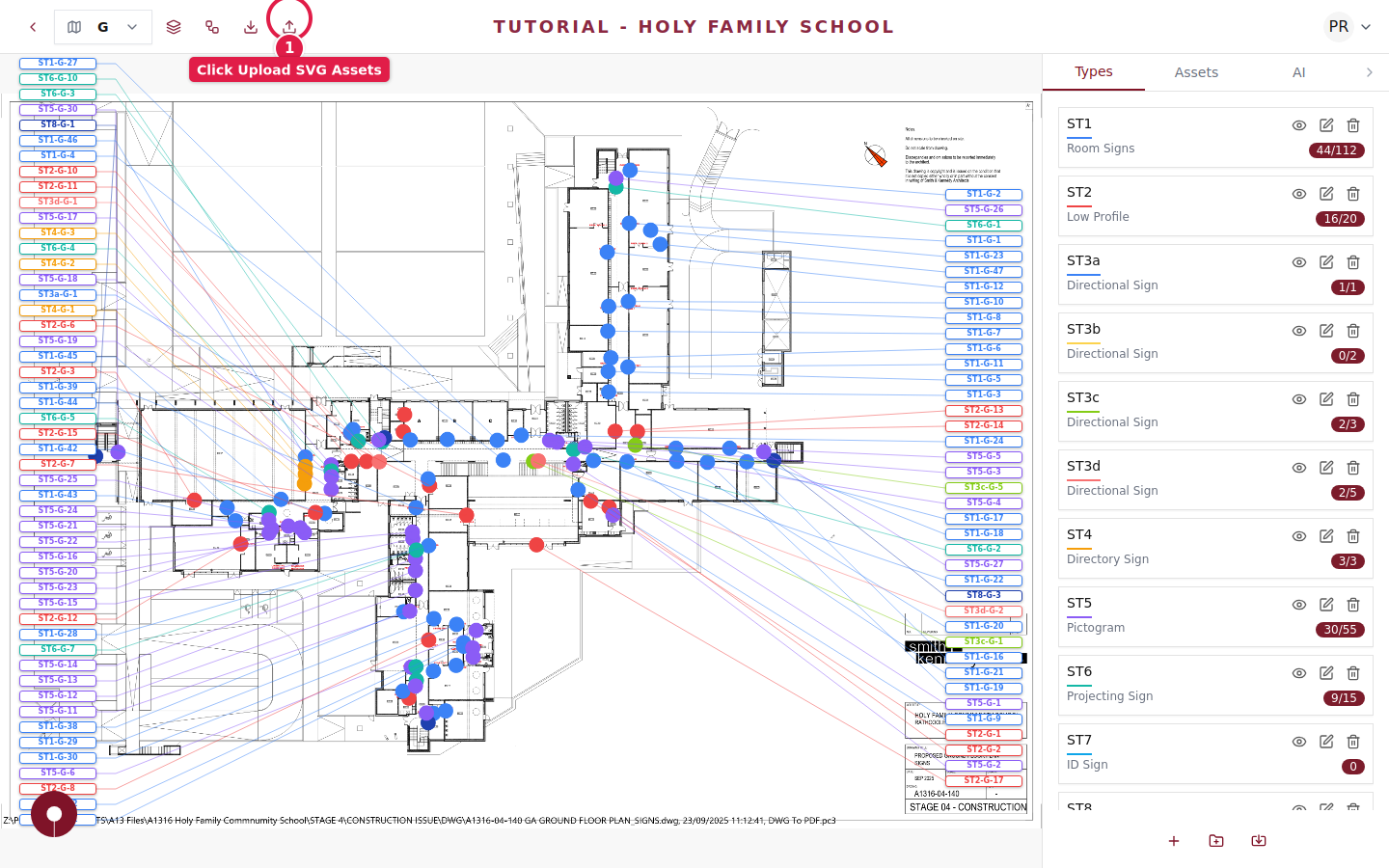
From any floorplan view, click the Upload SVG Assets button in the top toolbar. This opens the Upload Visuals dialog where you can add your artwork files.
Step 2 of 4
Upload your SVG files
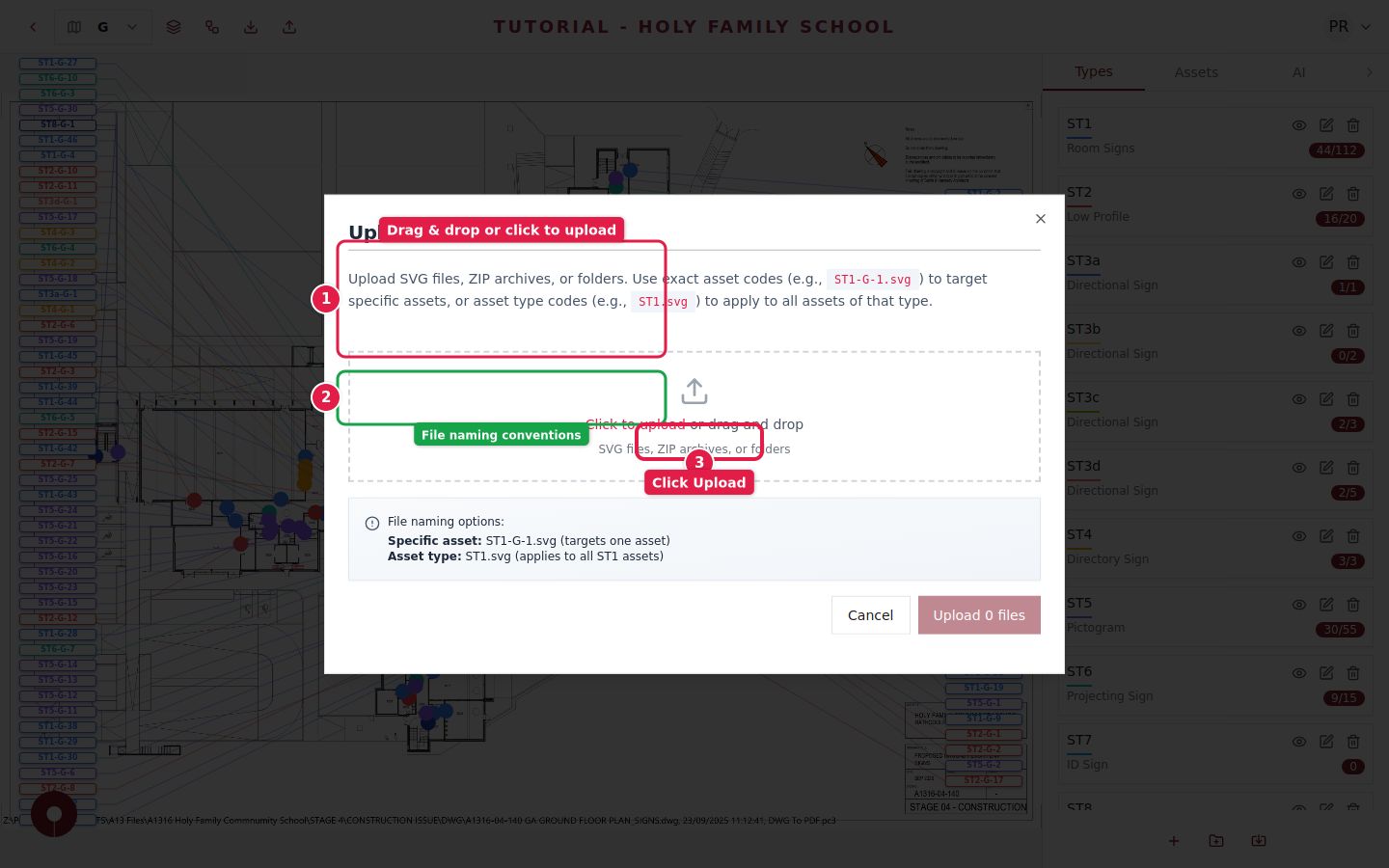
Drag and drop your SVG files into the upload area, or click Click to upload to browse your computer. You can also upload ZIP archives containing multiple SVG files, or entire folders.
Step 3 of 4
Understand file naming conventions
Plotstuff uses file names to automatically match artwork to assets:
- ✓Specific asset: Name the file with the full asset code, like ST1-G-1.svg — this targets exactly one asset
- ✓Asset type: Name the file with just the type code, like ST1.svg — this applies to all assets of that type
This automatic matching saves you from manually assigning artwork to each individual asset.
Use type-level naming (e.g. ST1.svg) when all assets of the same type share the same artwork design. Use specific naming for unique one-off assets.
Step 4 of 4
Upload and verify
Click the Upload button to process your files. Plotstuff will match each file to its corresponding asset or asset type. You can verify the artwork appeared correctly by checking individual assets in the Assets panel.