Exporting Floorplans, Reports, and Artwork
Learn how to download floorplan PDFs in multiple sizes, generate asset reports, export bills of quantities, and produce production-ready artwork files.
Before you start
- ✓A project with placed assets on at least one floorplan
Step 1 of 5
Open your project floorplan
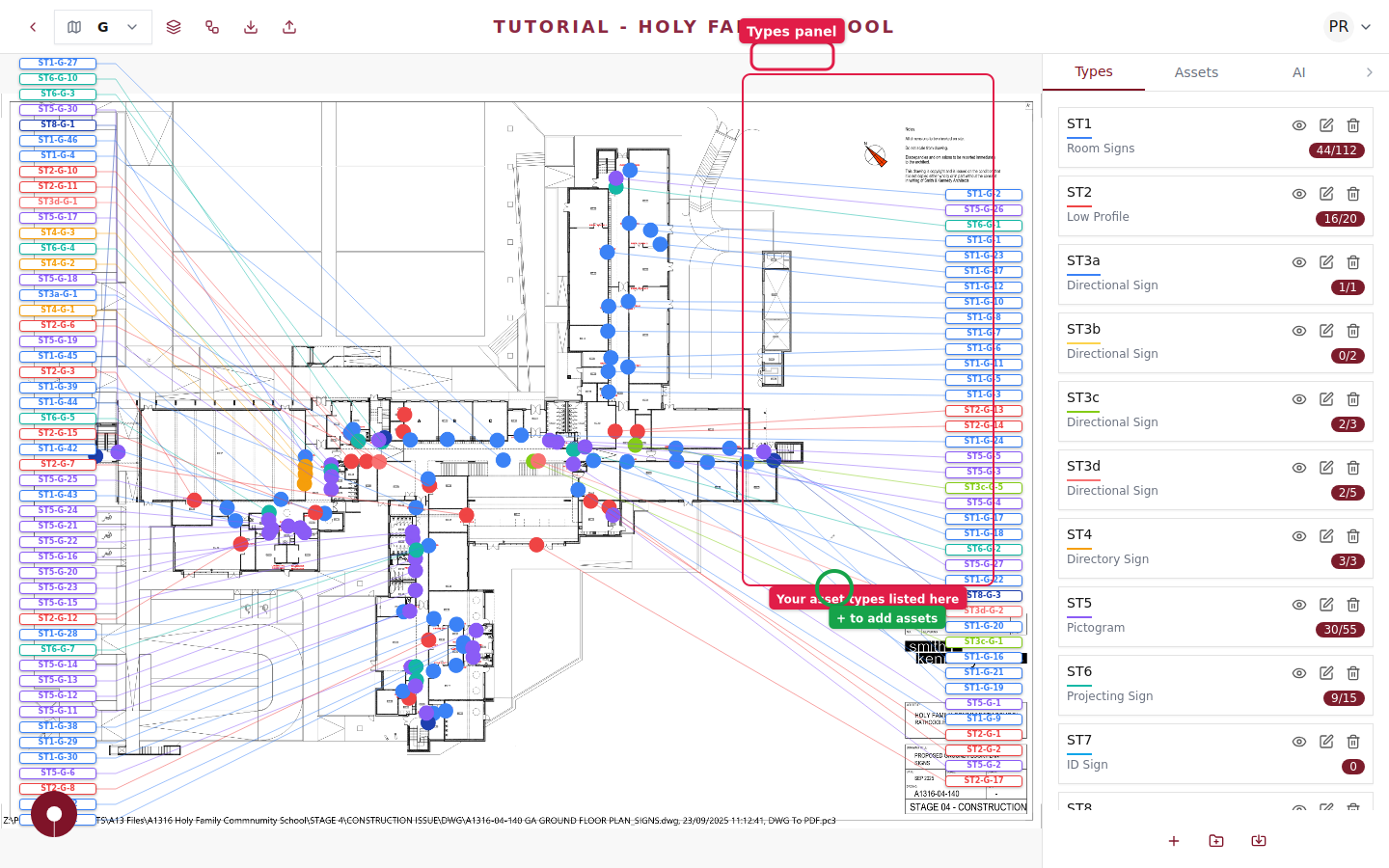
Navigate to your project and open a floorplan. Make sure your assets are placed where you want them before exporting.
Step 2 of 5
Click Download Options
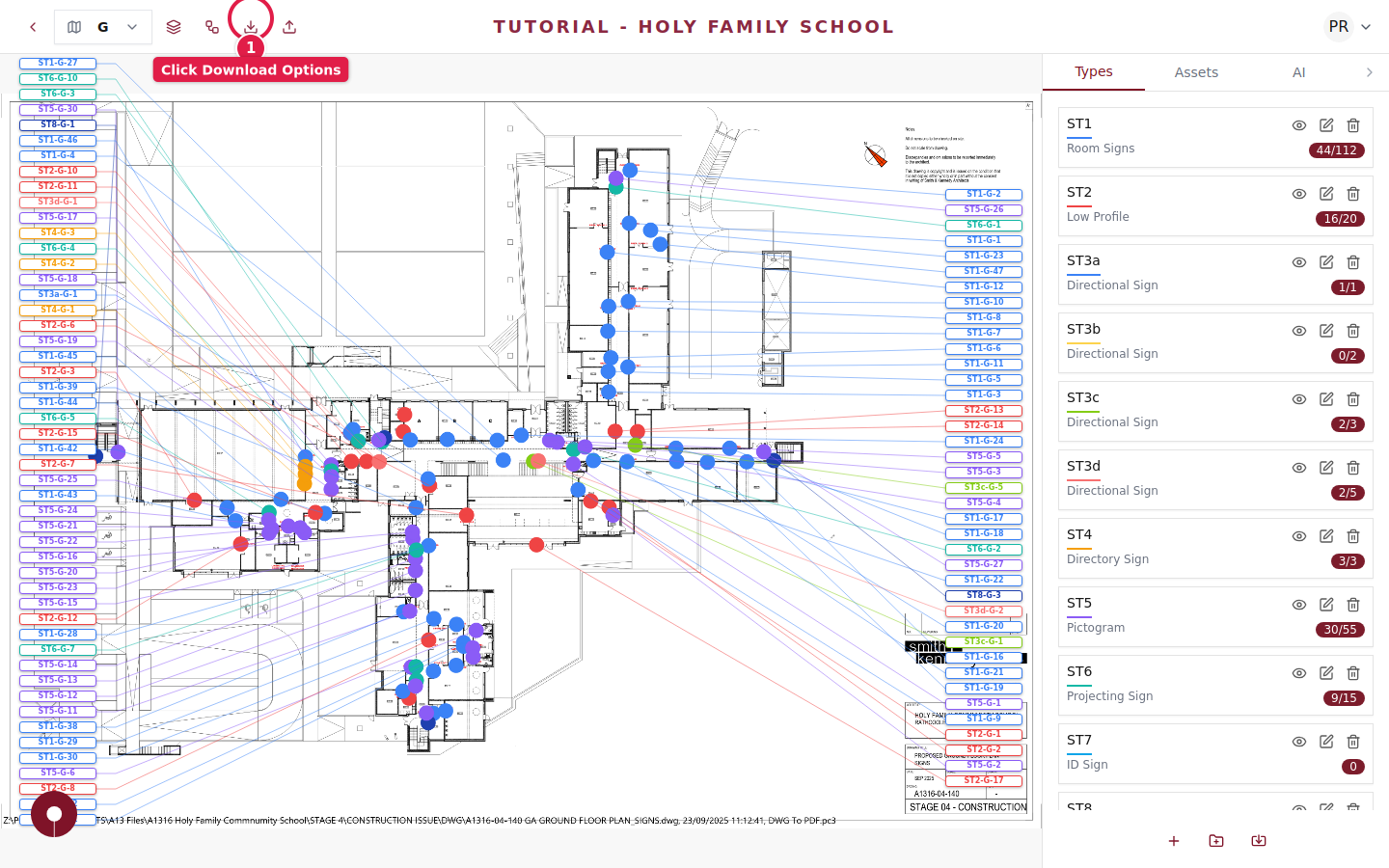
In the top toolbar, click the Download Options button (the download icon). This opens a menu with all available export formats organized into categories.
Step 3 of 5
Download floorplan PDFs
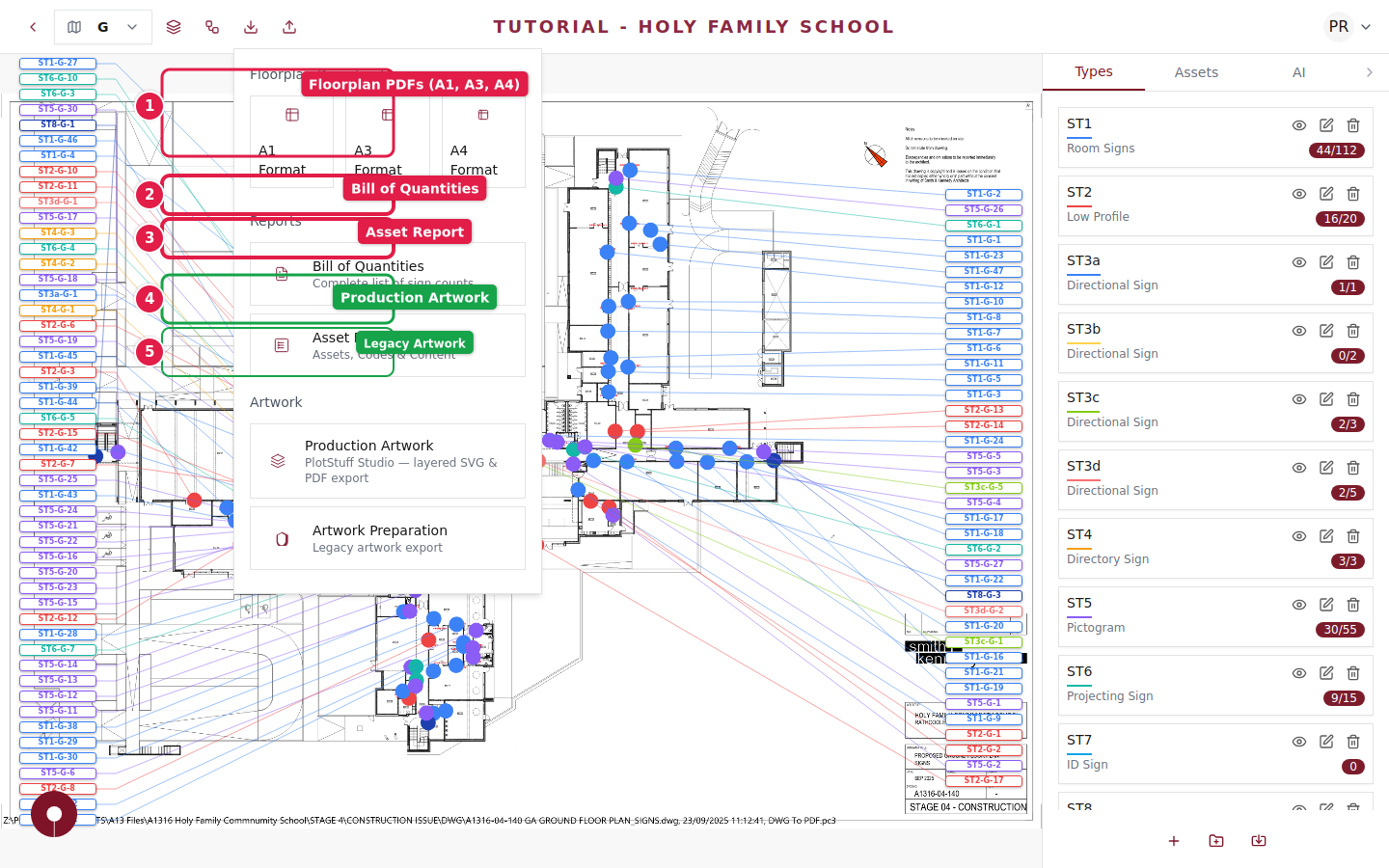
Under Floorplan Downloads, choose your preferred paper size:
- ✓A1 Format — Full architectural size for site printing
- ✓A3 Format — Standard office size for team reviews
- ✓A4 Format — Compact size for quick reference
Each PDF includes the floorplan drawing with all asset markers and labels overlaid.
A1 format works best for printing and posting on-site during installation.
Step 4 of 5
Generate reports
Under Reports, you'll find two useful exports:
- ✓Bill of Quantities — A complete count of all assets by type, perfect for procurement and budgeting
- ✓Asset Report — A detailed schedule showing every asset with its code, content, and location
Step 5 of 5
Export production artwork
Under Artwork, choose your artwork export method:
- ✓Production Artwork — PlotStuff Studio generates layered SVG and PDF files ready for fabrication
- ✓Artwork Preparation — Legacy export with basic artwork files
Production Artwork uses your visual templates to generate accurate, print-ready files for every asset.
Make sure you've uploaded SVG artwork or created visual templates before exporting production artwork.