Setting Up Approval Flows
Learn how to create approval workflows so stakeholders can review and approve assets before production. Share a live link with reviewers and track progress in real-time.
Before you start
- ✓A project with placed assets on at least one floorplan
Step 1 of 6
Open your project floorplan
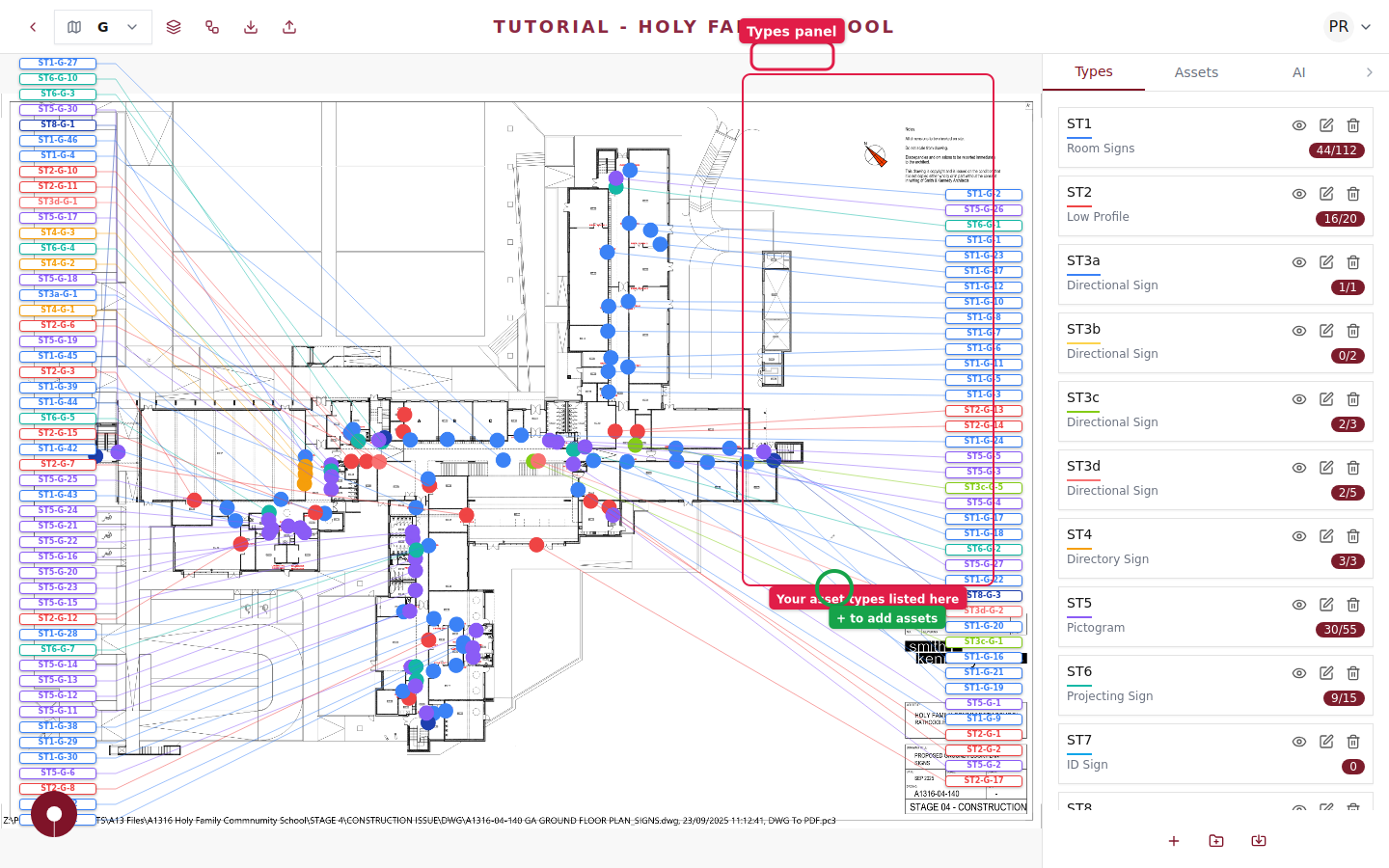
Navigate to your project and open any floorplan. You'll see the floorplan viewer with your placed assets. The toolbar at the top contains buttons for flows, downloads, and more.
Step 2 of 6
Click the Flows button
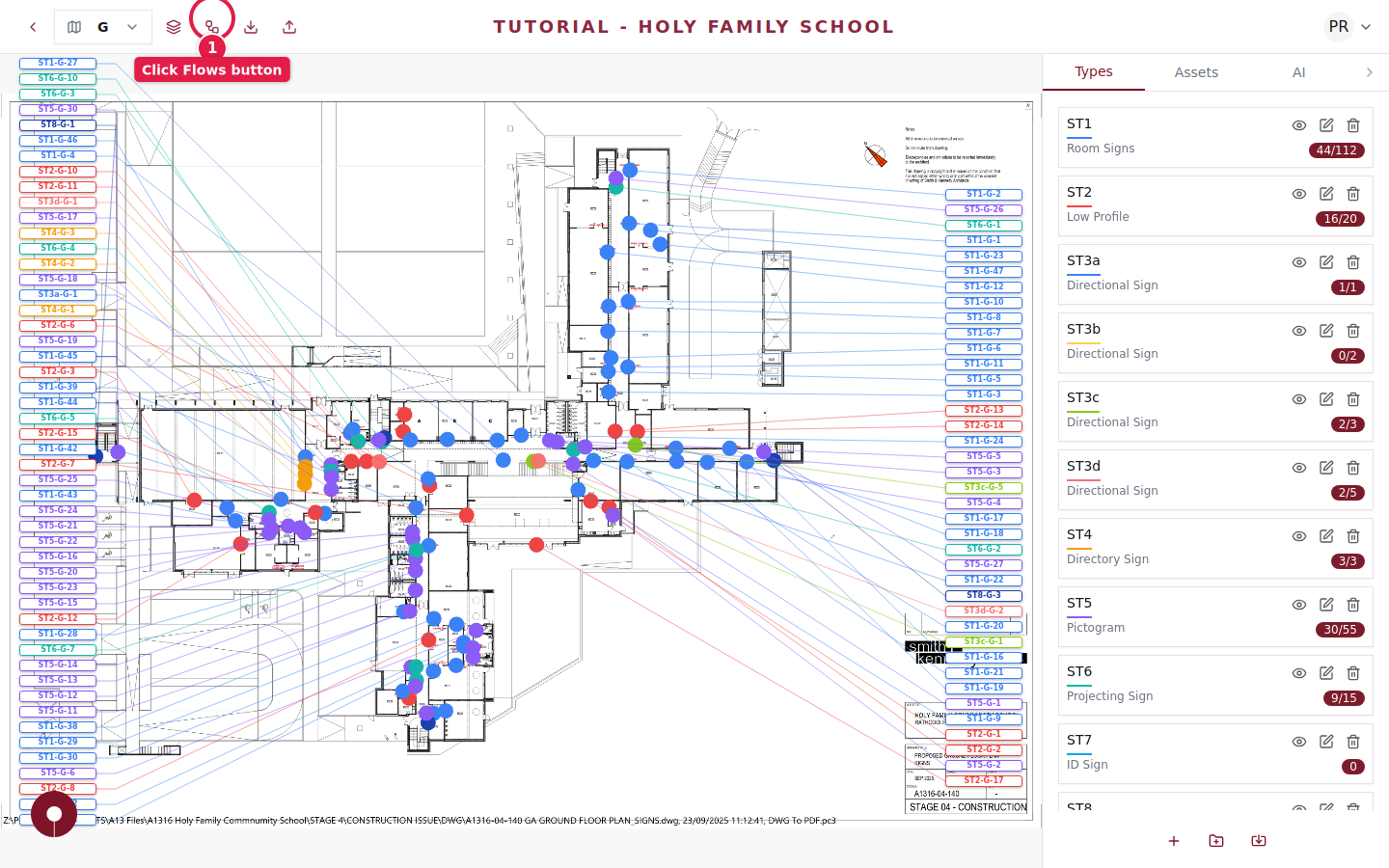
In the top toolbar, click the Approval & Installation Flows button (the workflow icon). This opens the Project Flows panel showing any existing flows and a button to create new ones.
Step 3 of 6
View existing flows
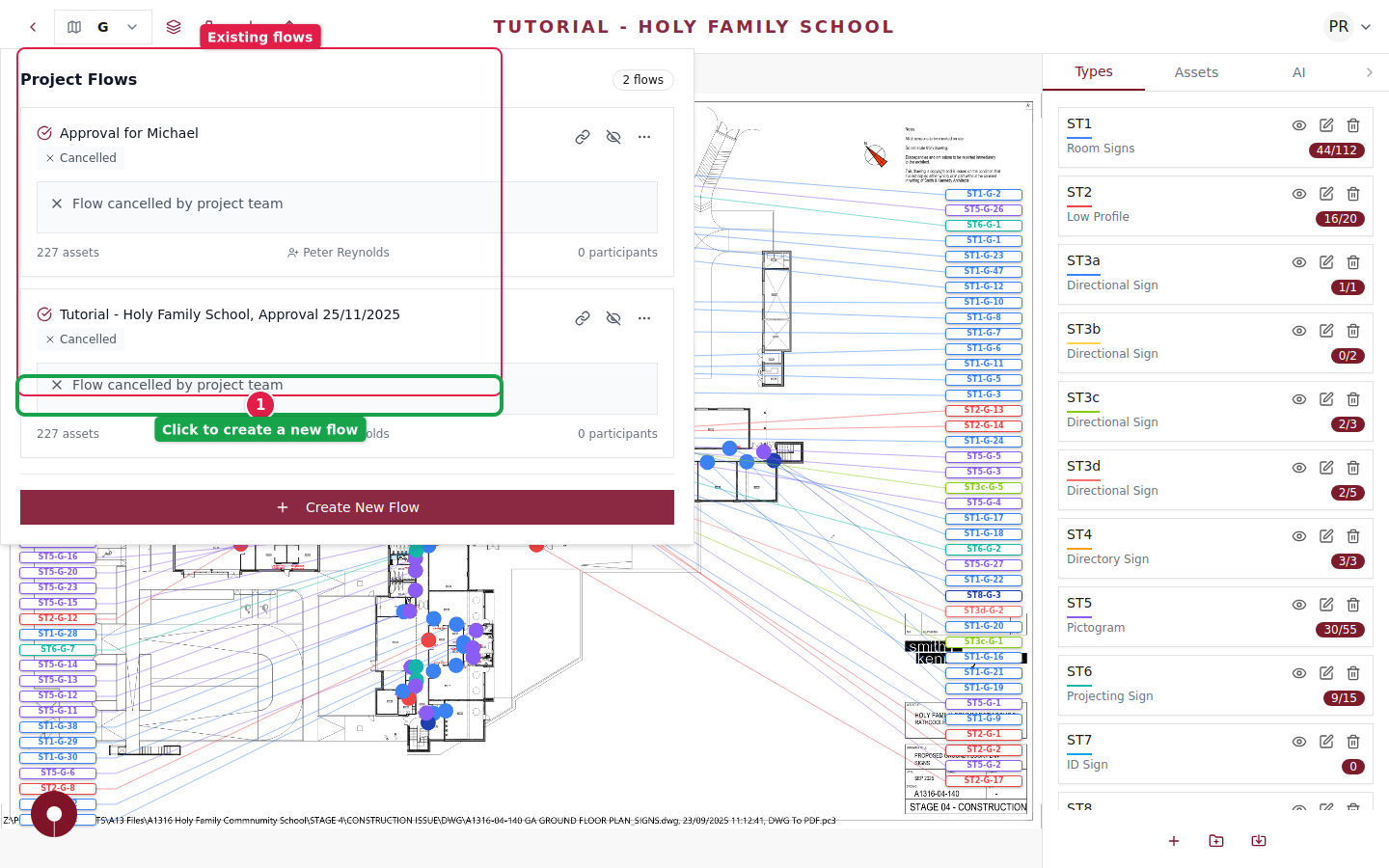
The Project Flows panel shows all your workflows. Each flow card displays:
- ✓The flow name and current status
- ✓How many assets are included
- ✓Who created it and how many participants are involved
You can also see status messages like "Flow cancelled by project team" for completed or cancelled flows.
Step 4 of 6
Create a new flow
Click the + Create New Flow button at the bottom of the panel. The Create Flow dialog will appear with several options to configure.
Step 5 of 6
Configure the flow
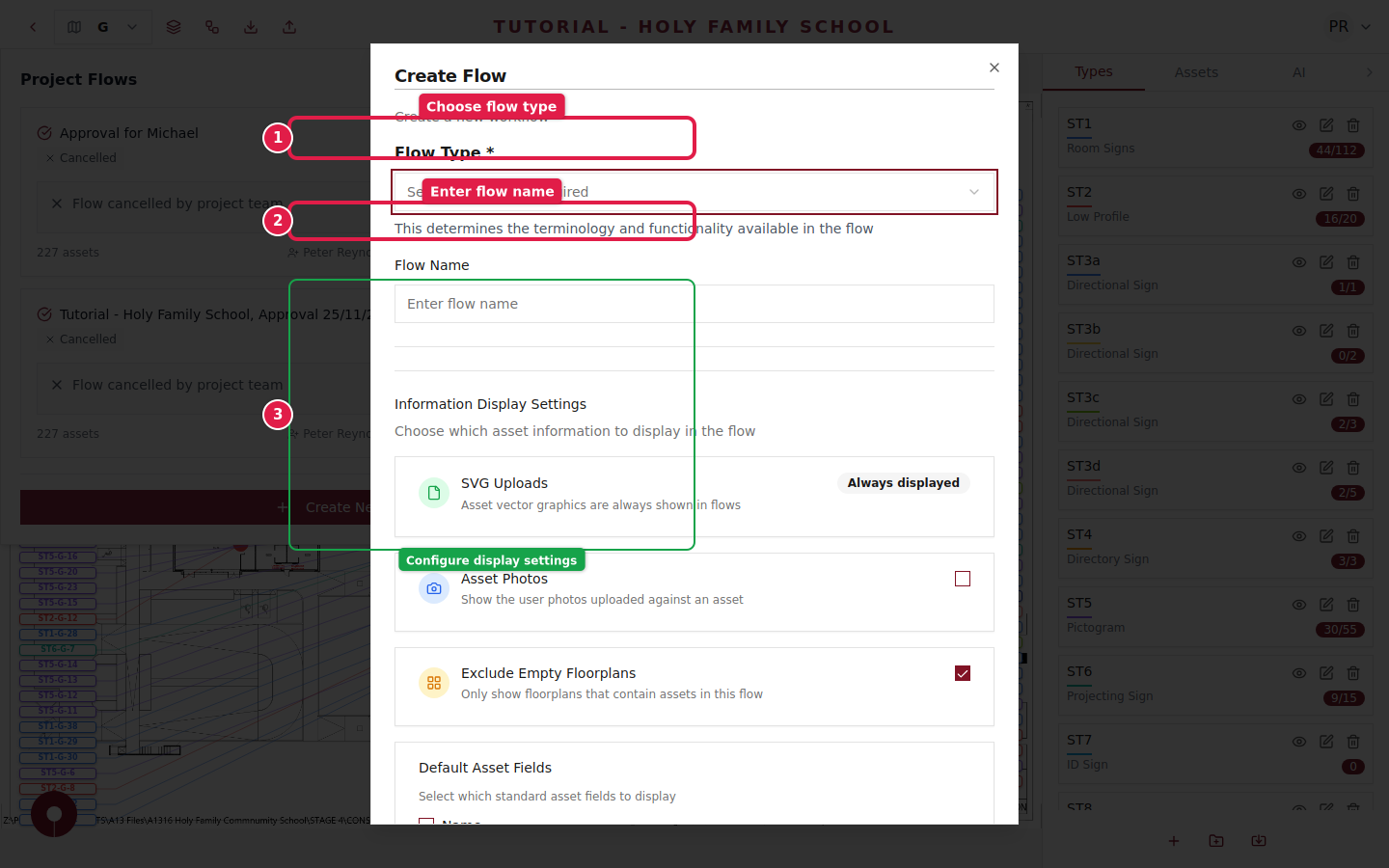
Fill in the flow details:
- 1Flow Type — Select "Approval" from the dropdown to create an approval workflow
- 2Flow Name — Give your flow a descriptive name (e.g. "Client Approval Round 1")
- 3Display Settings — Choose what information to show reviewers, such as SVG artwork, asset photos, and which fields to display
You can exclude empty floorplans to keep the review focused only on floors with placed assets.
Step 6 of 6
Share with reviewers
Once created, the flow generates a unique shareable link. Send this link to your stakeholders — they can review assets, leave comments, and approve or request changes directly in their browser without needing a Plotstuff account.
Click the link icon on any flow card to copy the shareable URL to your clipboard.