Managing Project Settings
Learn how to update project details, configure settings, and manage your project from the Settings tab. Covers project naming, descriptions, and project management.
Before you start
- ✓An existing Plotstuff project
Step 1 of 3
Open Project Settings
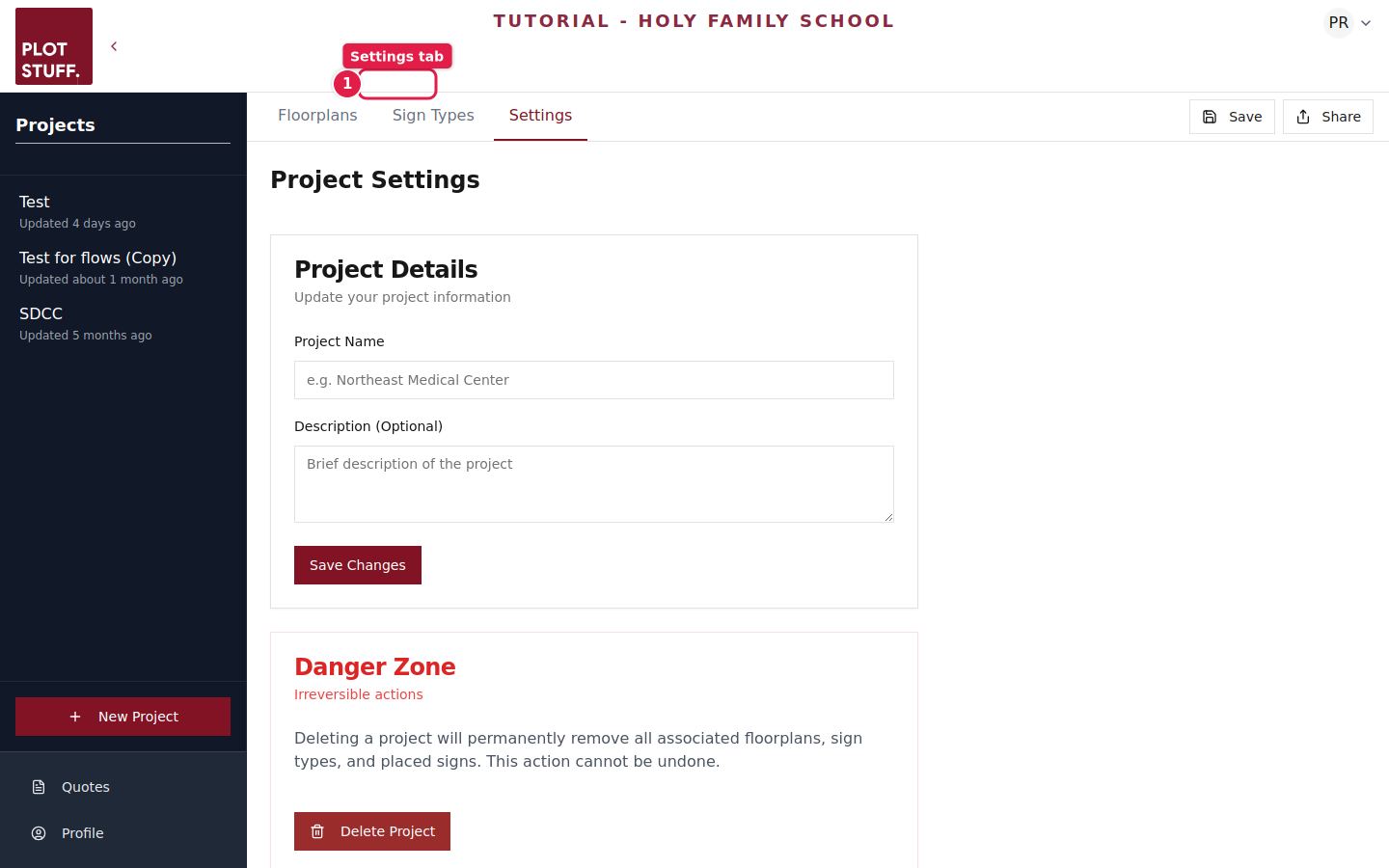
Inside your project, click the Settings tab at the top of the page. This takes you to the Project Settings page where you can manage your project details.
Step 2 of 3
Update project details
In the Project Details section, you can:
- ✓Project Name — Change the name of your project to match the building or site
- ✓Description — Add an optional description to help your team understand the project scope
Click Save Changes when you're done.
Use a clear, descriptive project name that includes the building name or address so your team can quickly identify it.
Step 3 of 3
Understand the Danger Zone
At the bottom of the Settings page, you'll find the Danger Zone section. This contains irreversible actions like deleting the project. Deleting a project permanently removes all floorplans, asset types, and placed assets — so use this with caution.
Export your floorplans and reports before deleting a project, as this action cannot be undone.